AI Agents (MCP)
Echidna exposes a Model Context Protocol (MCP) server at /mcp. MCP is an open standard that lets AI assistants and agents call external tools directly — no custom code, no API wrappers. Once connected, an AI assistant can look up concepts, translate codes, expand value sets, and navigate clinical hierarchies just by understanding your intent.
The MCP endpoint is available at:
https://echidna.fhir.org/mcp
Authentication works the same way as the REST API — pass your API key in the Authorization header. Free-tier limits also apply; unauthenticated requests are accepted but subject to free-plan restrictions.
Available tools
| Tool | What it does |
|---|---|
CodeSystem-list | List all available code systems and their URIs |
CodeSystem-lookup | Look up a concept by code or display name |
CodeSystem-subsumes | Test the subsumption relationship between two concepts |
CodeSystem-validate-code | Check whether a code exists in a code system |
ValueSet-list | List ValueSets hosted on this server — one per OMOP domain, vocabulary, and concept class, plus any curated sets |
ValueSet-expand | Expand a ValueSet definition into a list of matching concepts, given inline or by a hosted ValueSet's url |
ValueSet-validate-code | Check whether a concept is a member of a ValueSet, given inline or by a hosted ValueSet's url |
ConceptMap-list | List available ConceptMaps |
ConceptMap-translate | Translate a code between systems (e.g. ICD-10-CM → OMOP), or scope to a ConceptMap url |
Claude Desktop
1. Install Claude Desktop from claude.ai/download.
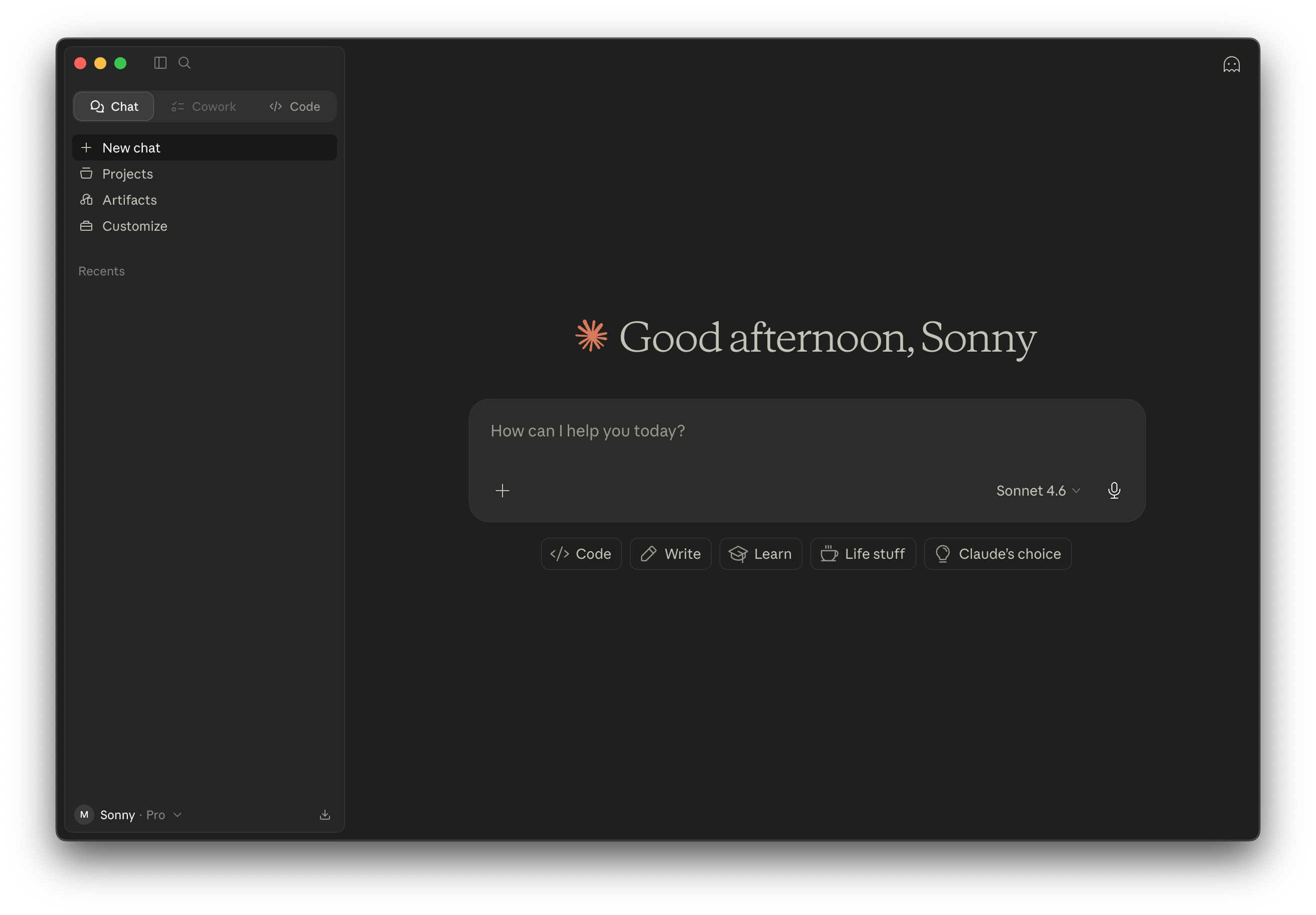
2. Click Customize in the sidebar.
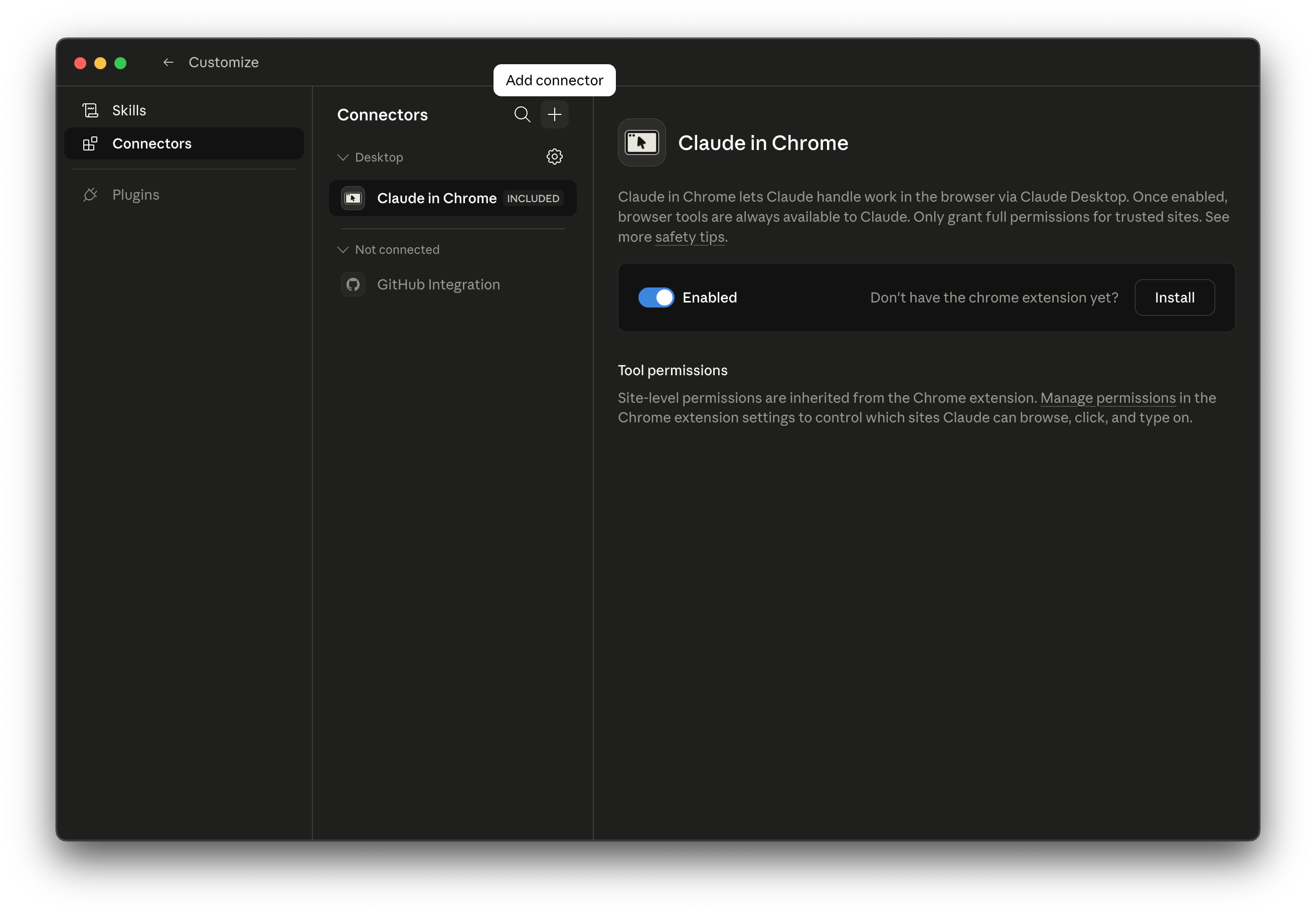
3. Go to Connectors and click + (Add connector).
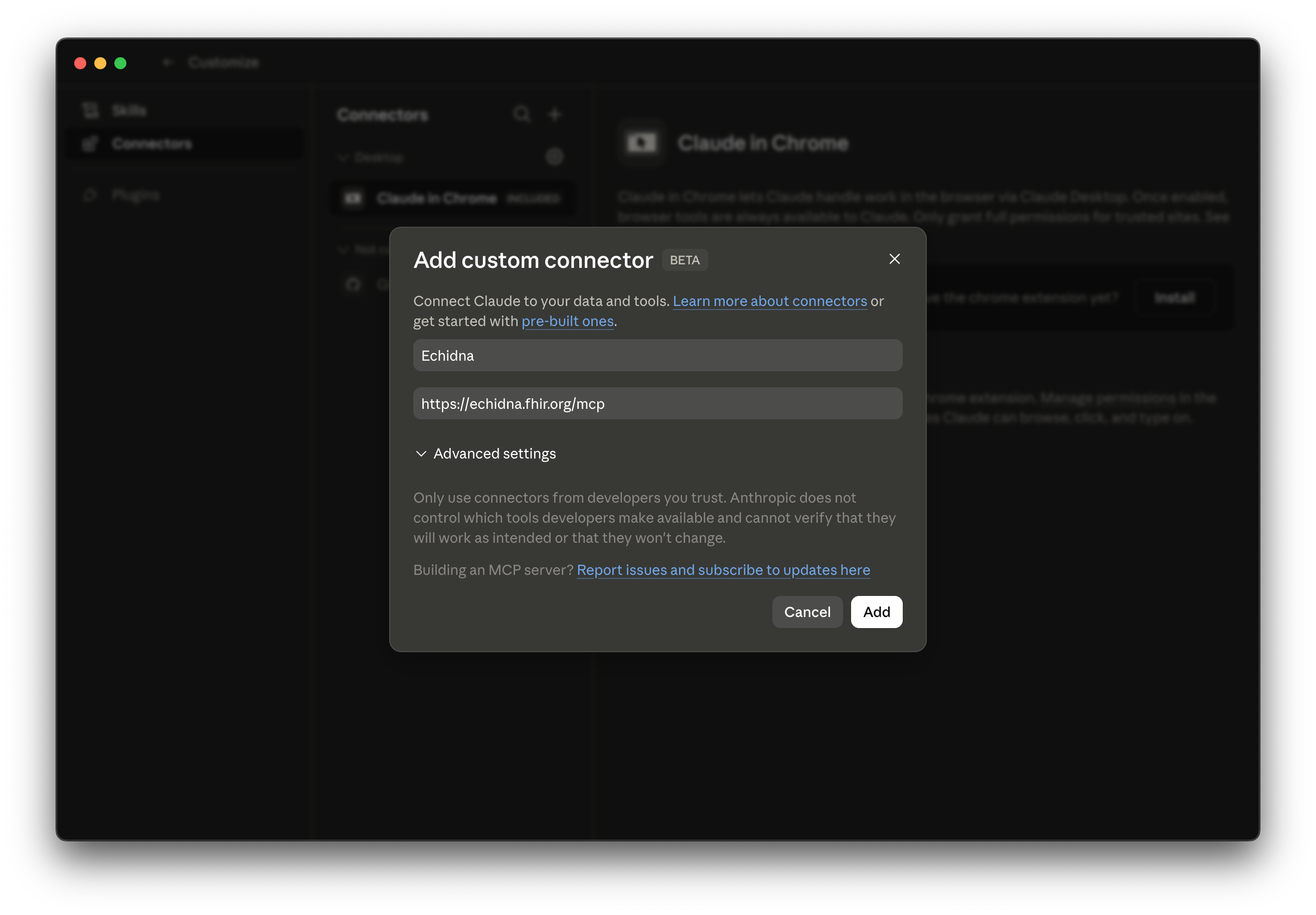
4. Click Add custom connector and enter:
- Name: Echidna
- Remote MCP server URL:
https://echidna.fhir.org/mcp
Jump to the advanced section below.
5. Try it out. Some example prompts:
- "Look up SNOMED code 73211009"
- "What is the source concept code for tinnitus in ICD-9-CM?"
- "Translate the ICD-9-CM code for tinnitus to ICD-10-CM"
- "Is type 2 diabetes a subtype of diabetes mellitus in SNOMED?"
Advanced: add with an API key
This method requires Node.js to be installed on your computer. If you're not sure whether you have it, download and install it before continuing.
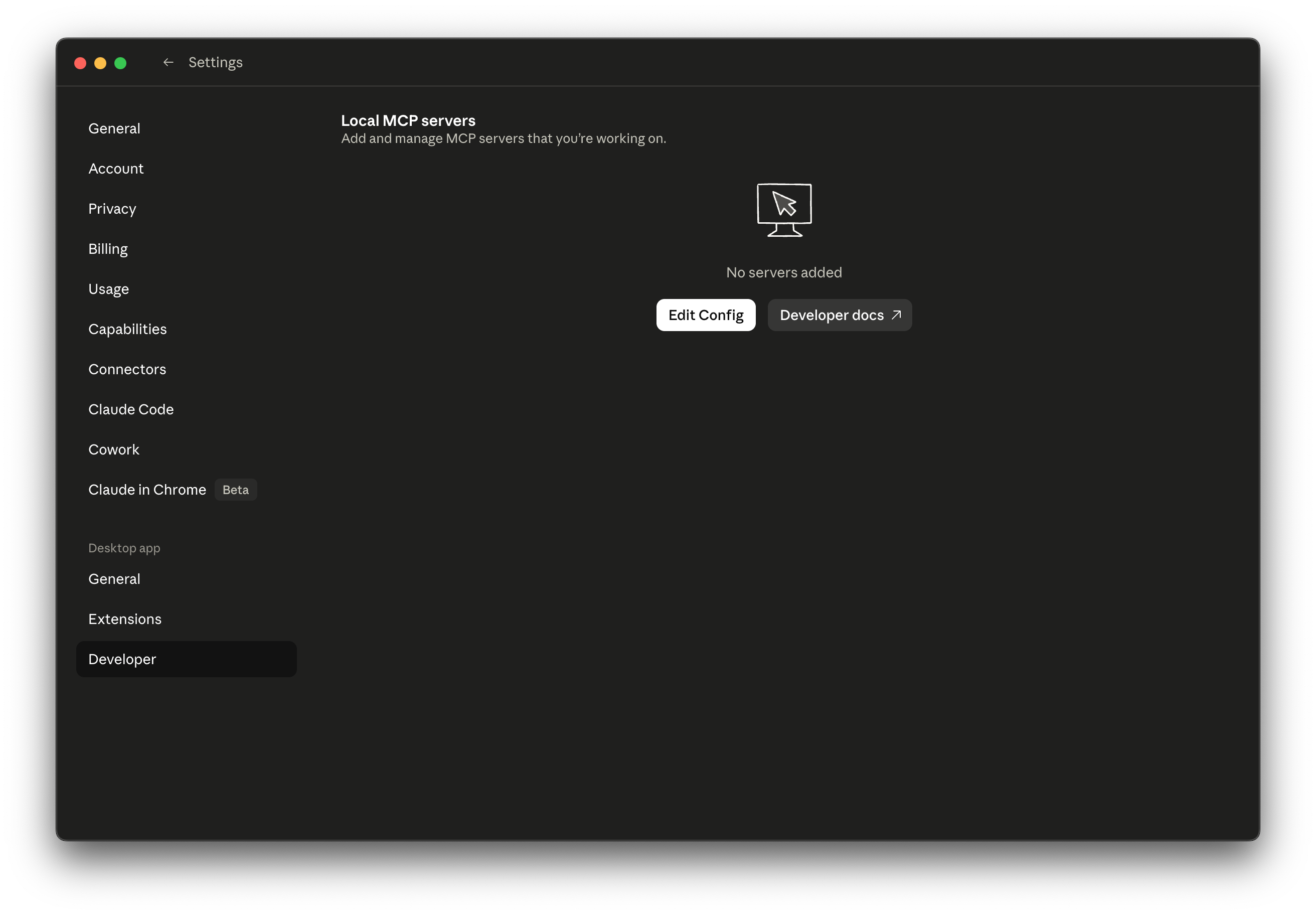
1. Open the config file. Go to Settings → Developer → Edit Config. This opens a text file in your default editor.
2. Paste the Echidna entry. Copy the block below and add it inside the "mcpServers" section of the file. Replace YOUR_API_KEY with the key from your Echidna subscription confirmation email.
"echidna": {
  "command": "npx",
  "args": [
    "-y",
    "mcp-remote",
    "https://echidna.fhir.org/mcp",
    "--header",
    "Authorization: Bearer YOUR_API_KEY"
  ]
}
3. Check your work. Your file should look similar to this — "echidna" sits inside "mcpServers", alongside any other servers that may already be there:
{
  "mcpServers": {
    "echidna": {
      "command": "npx",
      "args": [
        "-y",
        "mcp-remote",
        "https://echidna.fhir.org/mcp",
        "--header",
        "Authorization: Bearer es_1234_567..."
      ]
    },
    "some-other-server": {
      "..."
    }
  },
  "preferences": {
    "..."
  }
}
4. Save the file, then quit and reopen Claude Desktop.
For Developers
Claude Code
Claude Code is Anthropic's CLI for agentic coding. Adding Echidna as an MCP server lets Claude autonomously look up codes, validate terminologies, and translate between systems as part of any task — without you having to stop and ask separately.
Without an API key (free tier):
claude mcp add --transport http --scope user echidna https://echidna.fhir.org/mcp
With an API key:
claude mcp add --transport http --scope user echidna https://echidna.fhir.org/mcp \
  --header "Authorization: Bearer YOUR_API_KEY"
The --scope user flag makes the server available across all your projects. Use --scope project instead to commit it to .mcp.json and share it with your team.
Building your own agent
If you are building an agent using the MCP SDK, connect to Echidna like any other Streamable HTTP server:
import { Client } from "@modelcontextprotocol/sdk/client/index.js";
import { StreamableHTTPClientTransport } from "@modelcontextprotocol/sdk/client/streamableHttp.js";

const client = new Client({ name: "my-agent", version: "1.0.0" });

await client.connect(
  new StreamableHTTPClientTransport(
    new URL("https://echidna.fhir.org/mcp"),
    {
      requestInit: {
        headers: { Authorization: "Bearer YOUR_API_KEY" },
      },
    },
  ),
);

const result = await client.callTool({
  name: "CodeSystem-lookup",
  arguments: { code: "201826" },
});
Plan limits
The same plan limits that apply to the REST API apply to MCP tool calls. If a request exceeds your plan's limits, the tool returns an error message the AI assistant can read and reason about — for example, prompting it to suggest narrowing the query or upgrading your plan.